

Movie Tailor is a lean video editor for the Mac: cut clips, add photos, titles and transitions, animate pictures and export MP4 movies. If you like, an AI assistant such as Claude can control Movie Tailor for you.
Contact
Questions, problems, ideas? Write to movietailor@helgeohl.de. Please include your macOS version, the Movie Tailor version (Movie Tailor › About Movie Tailor) and, for problems, a short description of the steps, ideally with a screenshot.
Requirements
- A Mac with macOS 15 (Sequoia) or later
- For AI Control: an MCP-capable AI assistant such as Claude Code
Frequently asked questions
Which files can I import?
Movies and audio files that macOS can play (e.g. MOV, MP4, M4A, WAV) and images (e.g. JPEG, PNG, HEIC). Drag them into the media list or choose “Import Media…”. Photos start at 5 seconds and can be made any length.
How do I export my movie?
Choose File › Export… (⌘E). Movie Tailor writes an MP4 file in your project’s format, using H.264 (most compatible) or HEVC (smaller file).
How do I add a transition?
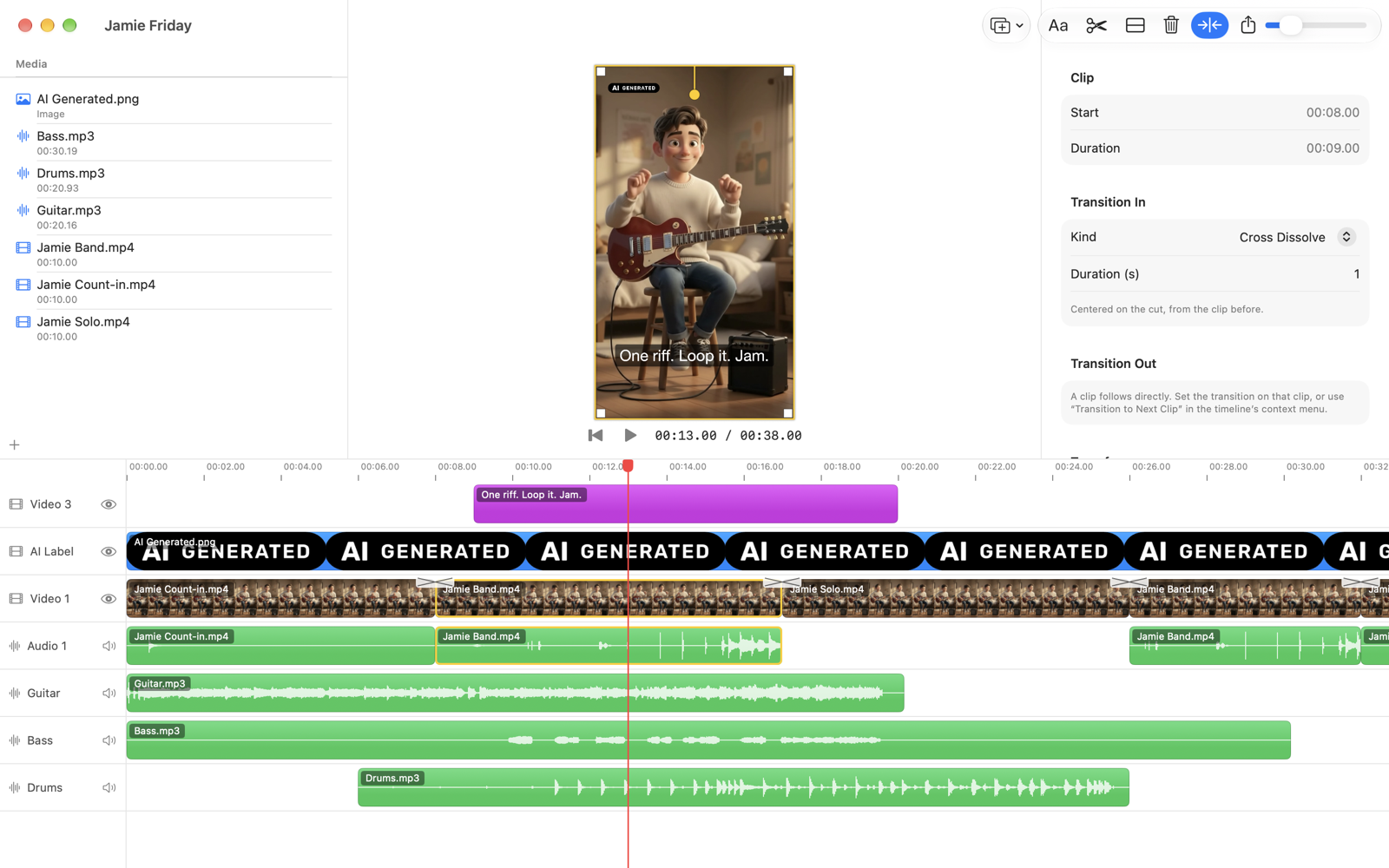
Place two clips right after each other, right-click the first one and choose “Transition to Next Clip” (Cross Dissolve, Dip to Black or Wipe). At the start or end of a clip without a neighbour you can fade in or out. Drag the white bar in the timeline to change its length or move the cut.
How do I animate position, size or rotation?
Select the clip, add a keyframe with ◆ under “Keyframes” in the panel on the right, move the playhead and then move, scale or rotate the picture in the preview. Movie Tailor moves the picture between the keyframes – linearly or easing in and out.
Can I turn off automatic saving?
Yes: Movie Tailor › Settings › General › “Save changes automatically”. When it is off, save with ⌘S; Movie Tailor asks before closing a project with unsaved changes.
A file is shown as “File not found”
Projects only refer to your media files. If a file was moved, renamed or deleted, put it back in its original place, or remove the clip and import the file again.
How do I connect Movie Tailor to Claude?
- Open Movie Tailor › Settings › AI Control and add a folder under “Shared Folders”. The assistant can only import media from, and save projects and movies to, these folders.
- Copy the command shown there and run it once in Terminal, for example:
claude mcp add movie-tailor -- "/Applications/MovieTailor.app/Contents/Helpers/mtailor-mcp" - Restart Claude Code and keep Movie Tailor open. Now you can say: “Make a 30-second video with a title from the clips in my folder.”
The connection stays on your Mac. What the assistant can see and pass on is described in the privacy policy.